
Triggering your pop-up from Flows
Push pop-up stage
Once you've connected the main Flows Admin Panel to FlowsWave, you can start triggering pop-ups within any of your flows. This is accomplished through the 'push pop-up' stage, which you will find by adding a new stage and scrolling down to the FlowsWave options.
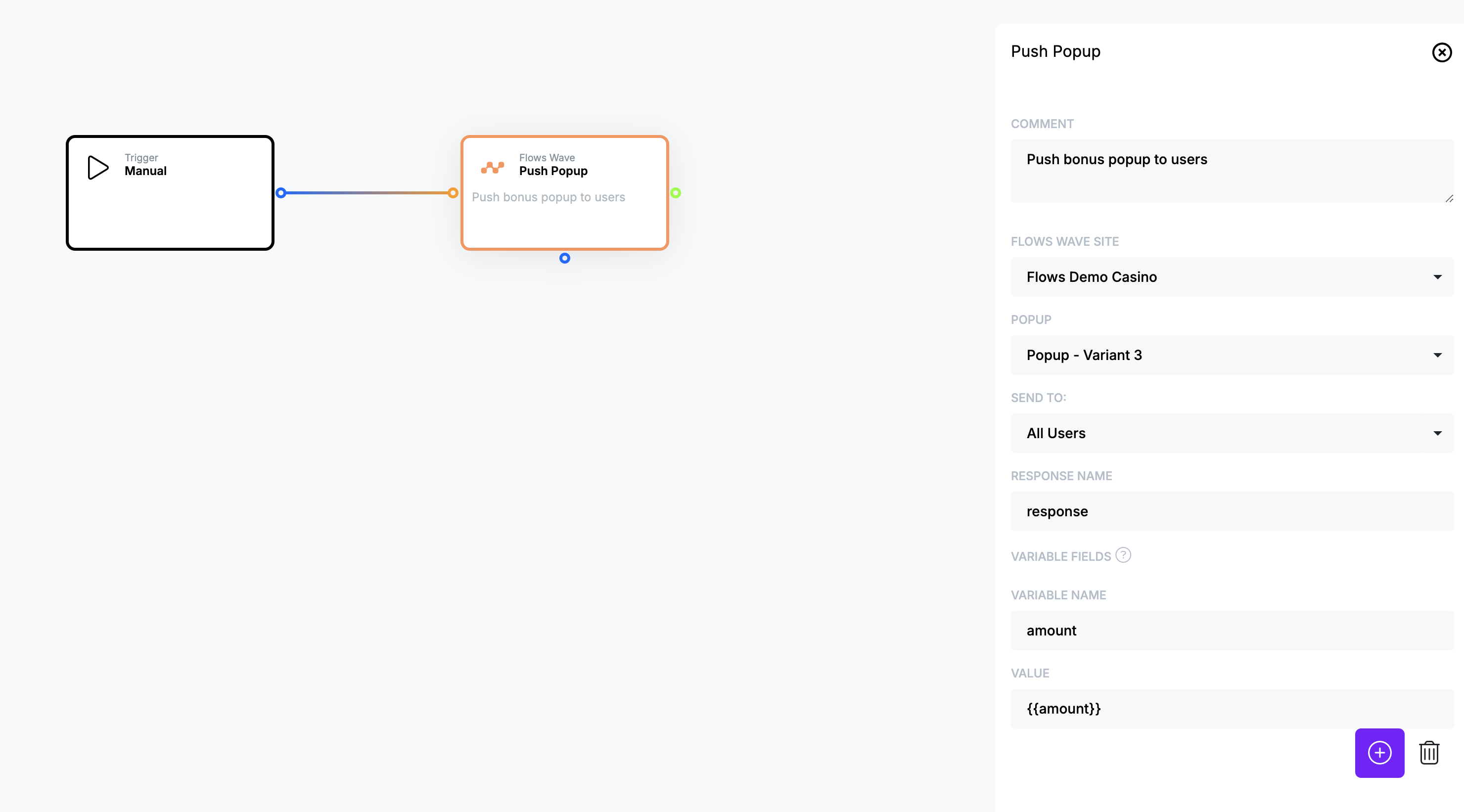
Start by selecting a linked FlowsWave site and a pop-up from the first two dropdown menus. Flows automatically synchronises with FlowsWave and will show you all pop-ups that you can trigger.
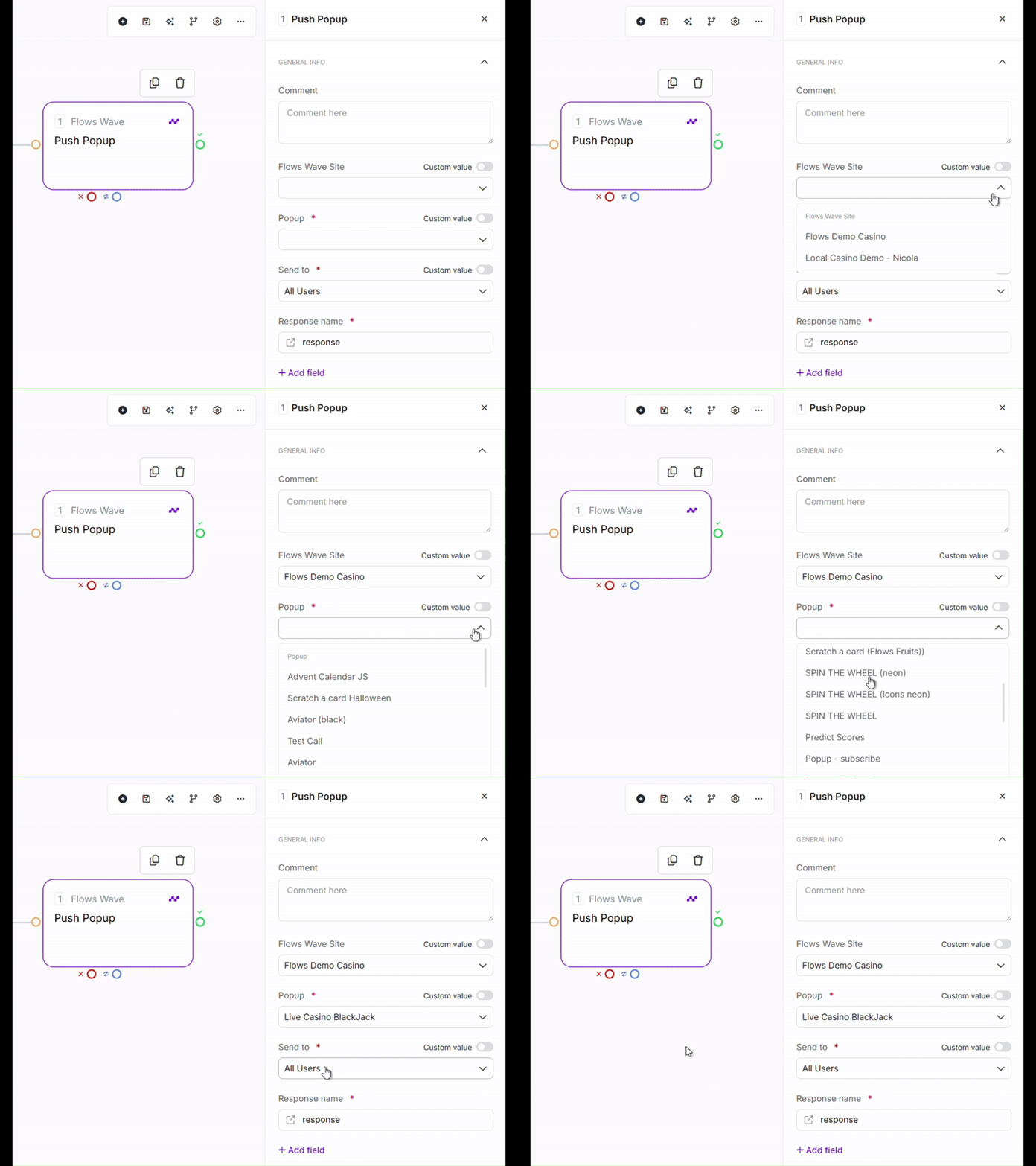
Other fields
Send to
The 'send to' field allows you to determine who the pop-up will be sent to. Please see a list of the different options below:
| All users | Send to all users that are on the site |
| All logged in | Send to all users that are logged into the site only. This is determined by the calling script if a userId is passed |
| All logged out | Sent to all users that are not logged into the site only. |
| Specific user(s) | Send to a single user or a set of users. If this is selected a comma separate list of users IDs will need to be provided |
Variables
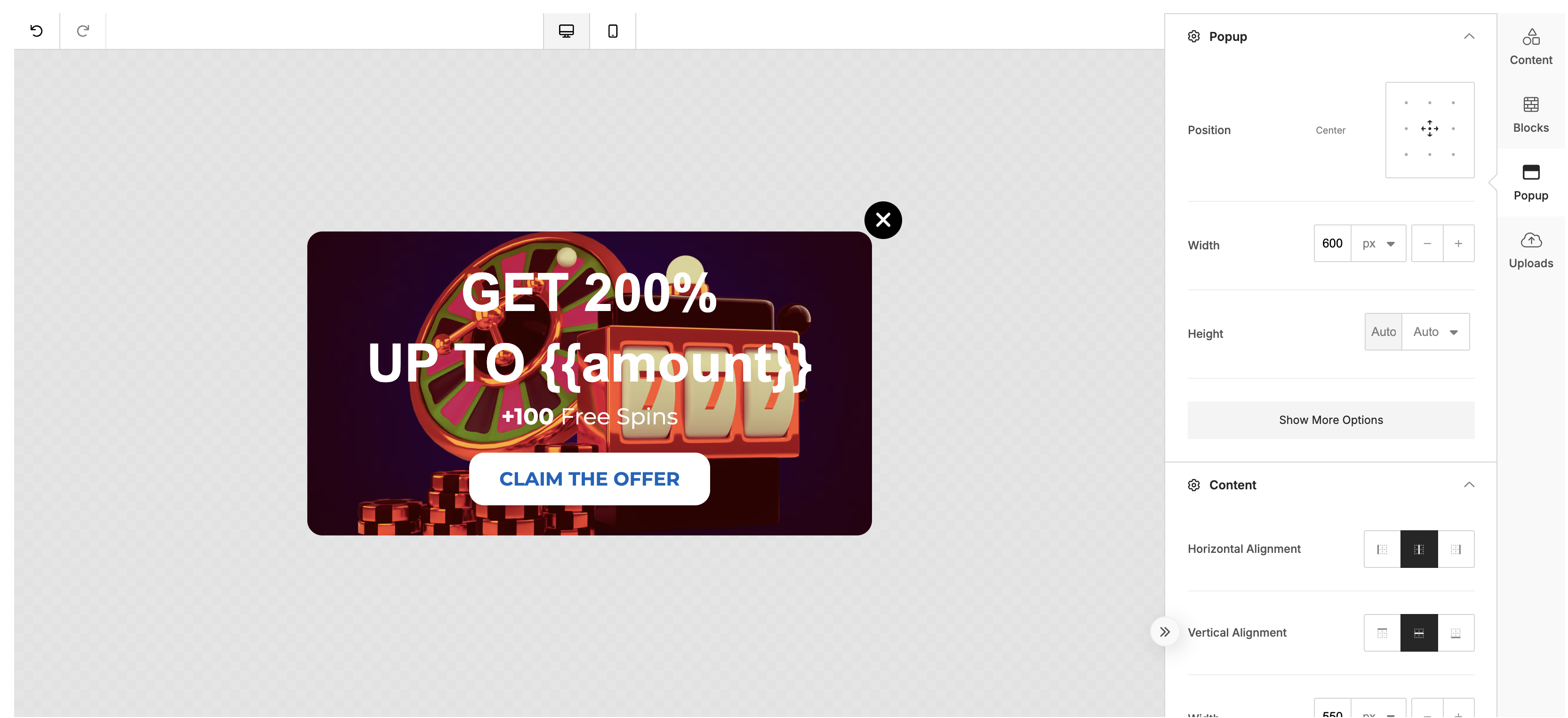
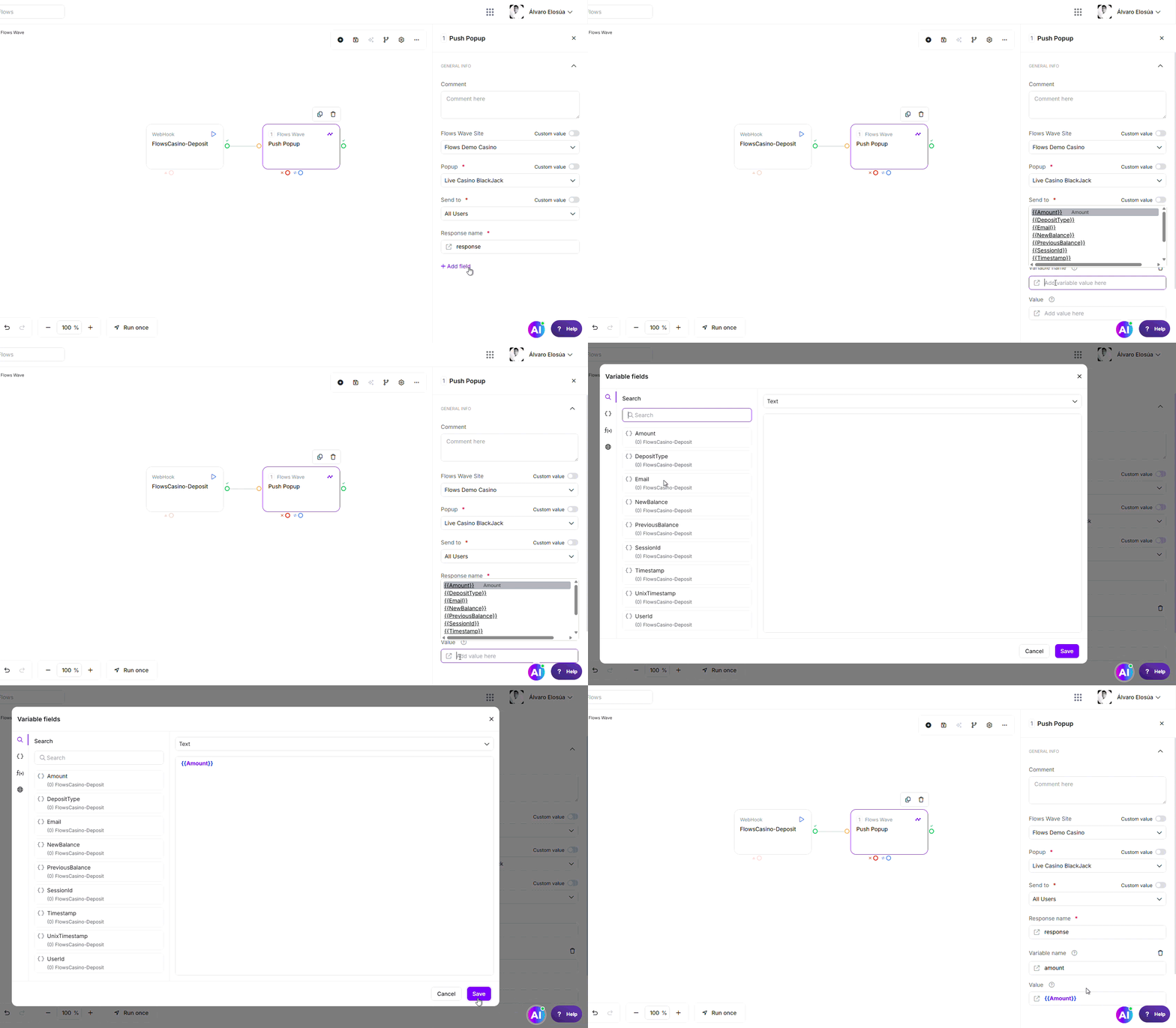
The variable section is used if you wish to pass dynamic data into you pop-up. In this section you can set one or more values by setting a 'variable name' and it's value. You can reference variables in FlowsWave in the same way as the Flows Admin Panel by passing in the variable name within double curly brackets {{ }}.
Example:
Response
The response field indicates the name of the field that will be used for callbacks (if needed). See callbacks below for more information.
Callbacks
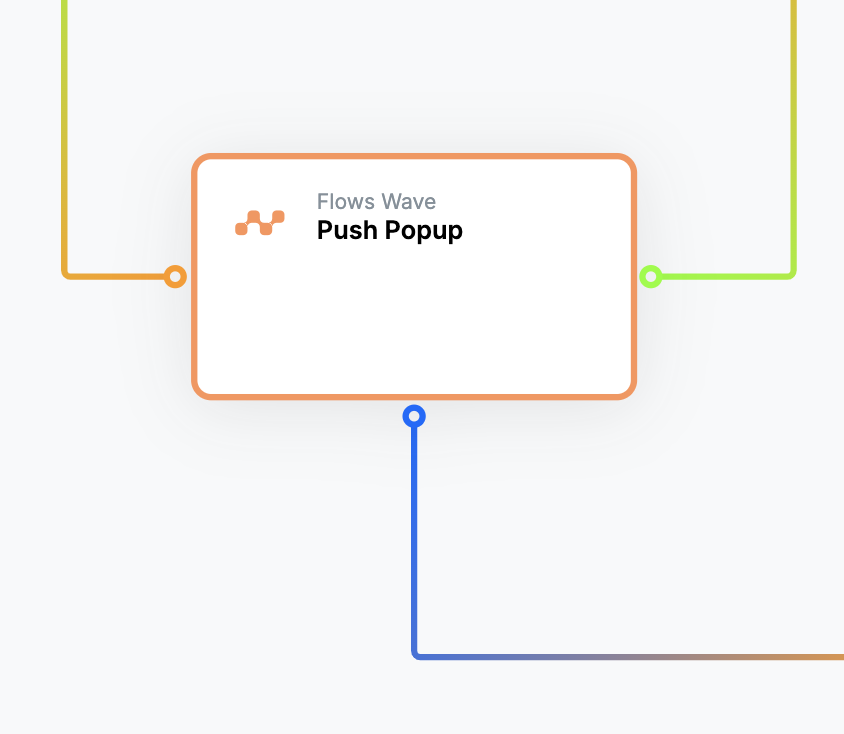
FlowsWave also supports callbacks which allow you to continue your flow after the user has clicked on a button from the pop-up. The callback flow path is represented through the blue path. After successfully triggering a pop-up, the flow will first continue out the green path immediately while any callbacks will trigger the blue path.
⚠️ Note: For a callback to run, the flow must be enabled. Disabled flows will not execute any callback actions, even during testing.
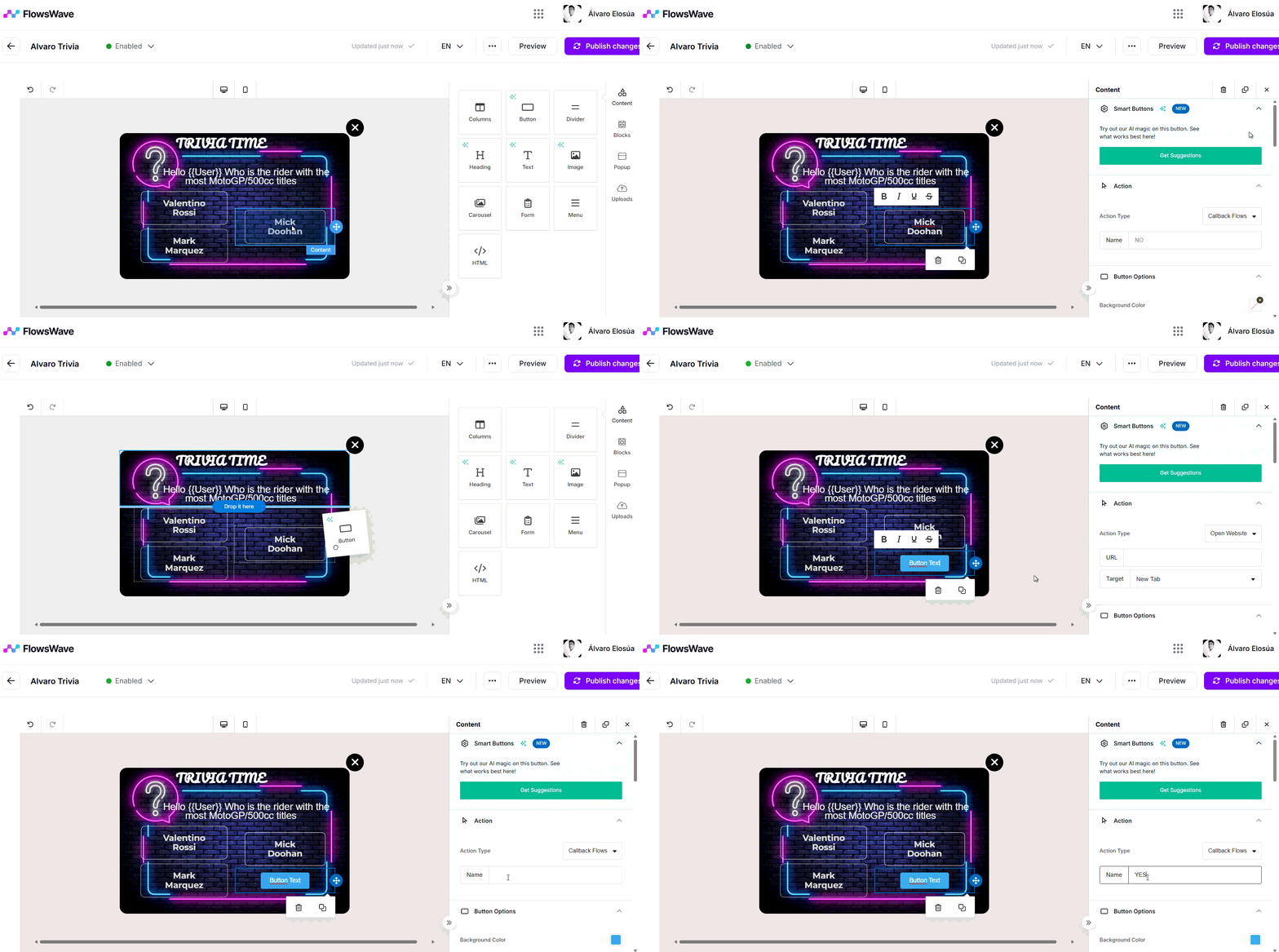
To use the callback data within your flow, you must manually reference the variable defined in the Response name field.
For example, if you set the response name to response and your pop-up includes a button, you can access which button was clicked by referencing:
{{response.button}}
This allows Flows to recognise and process the button interaction triggered in FlowsWave.
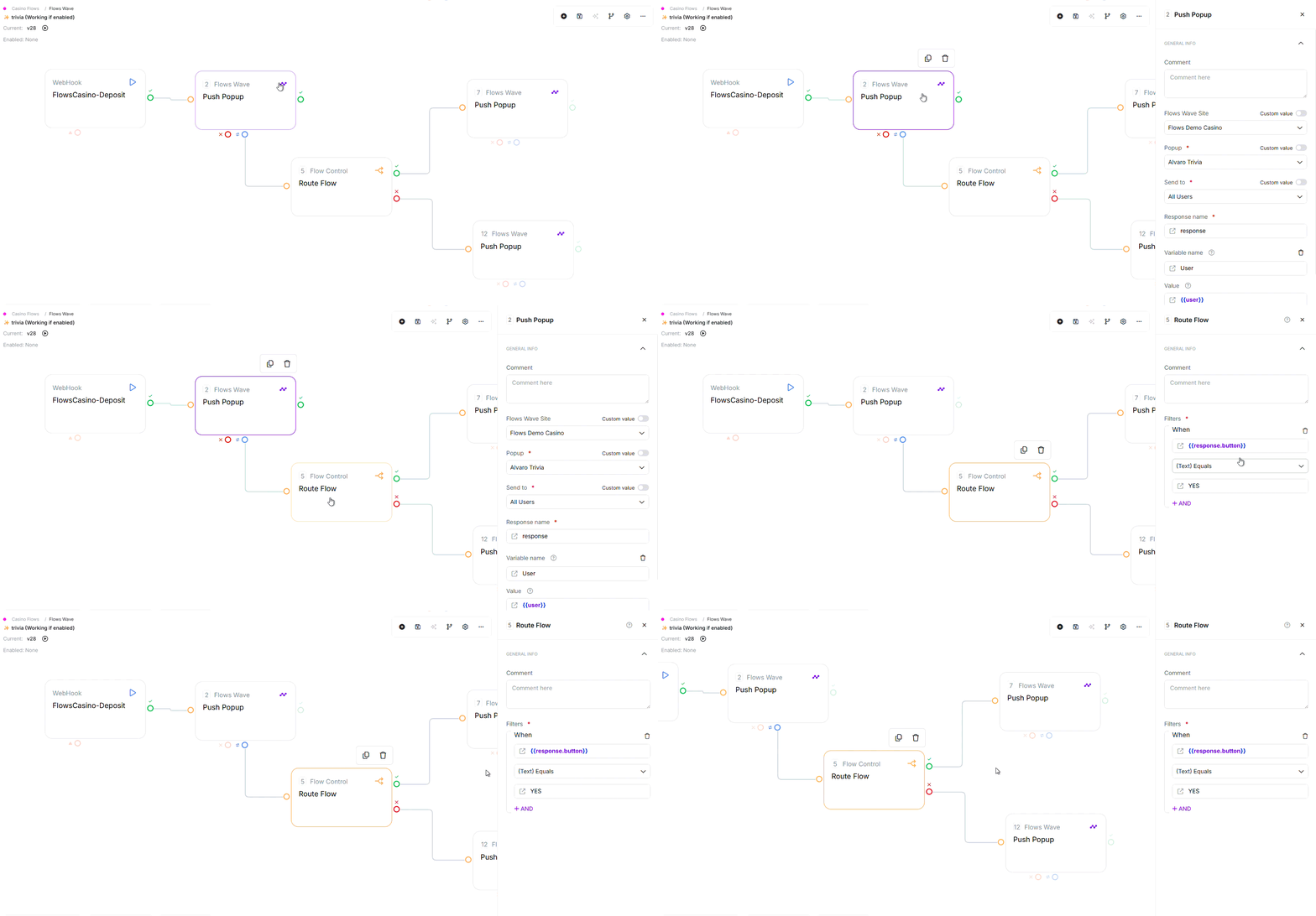
Callbacks paths are valid for up to 24 hours after the pop-up stage has been executed