
Setting up FlowsWave
Setting up a site
To get started with FlowsWave, create a site from the 'App Panel' and set your website's domain for this site. Pop-ups in FlowsWave are organised under individual sites and are linked to a single website. You can create multiple sites and invite others to collaborate on pop-ups within each site.
Installing script
To connect your website to FlowsWave, you’ll need to add a snippet of code to your website's frontend. This code snippet can be found under your 'Team Settings' and looks like this:
<script src="https://cdn.flows.world/js/flowswave-latest.js"></script>
<script>
// Initialize the popup script
FlowsWave.init("https://api.flowswave.world");// Start listening for broadcasted popups in site
FlowsWave.startListeningPopupsForSite("{{site_id}}");
//... site login
//post login: Start listening for popups directed to a user by supplying the {{userId}}
FlowsWave.startListeningPopupsForSite("{{site_id}}", "{{userId}}");
</script>
To make the most out of FlowsWave, you'll need to add a 'user ID' or 'session ID' to the last line of the script above. This enables you to send tailored messages from Flows directly to individual users.
Note: If you plan to include any sensitive information in your pop-ups, we recommend using a session ID in this field to prevent any potential risk of malicious users receiving messages intended for others.
Stopping FlowsWave
If you'd like to stop listening to events coming from FlowsWave after you've starting listening then you can call the following function at any time to disable to library:
stopListeningToPopupEvents({{flowsWaveSiteId}})
Connecting to Flows
To connect your Wave site to Flows, go to 'Team Settings' in the Flows App Panel and select FlowsWave from the left-hand menu.
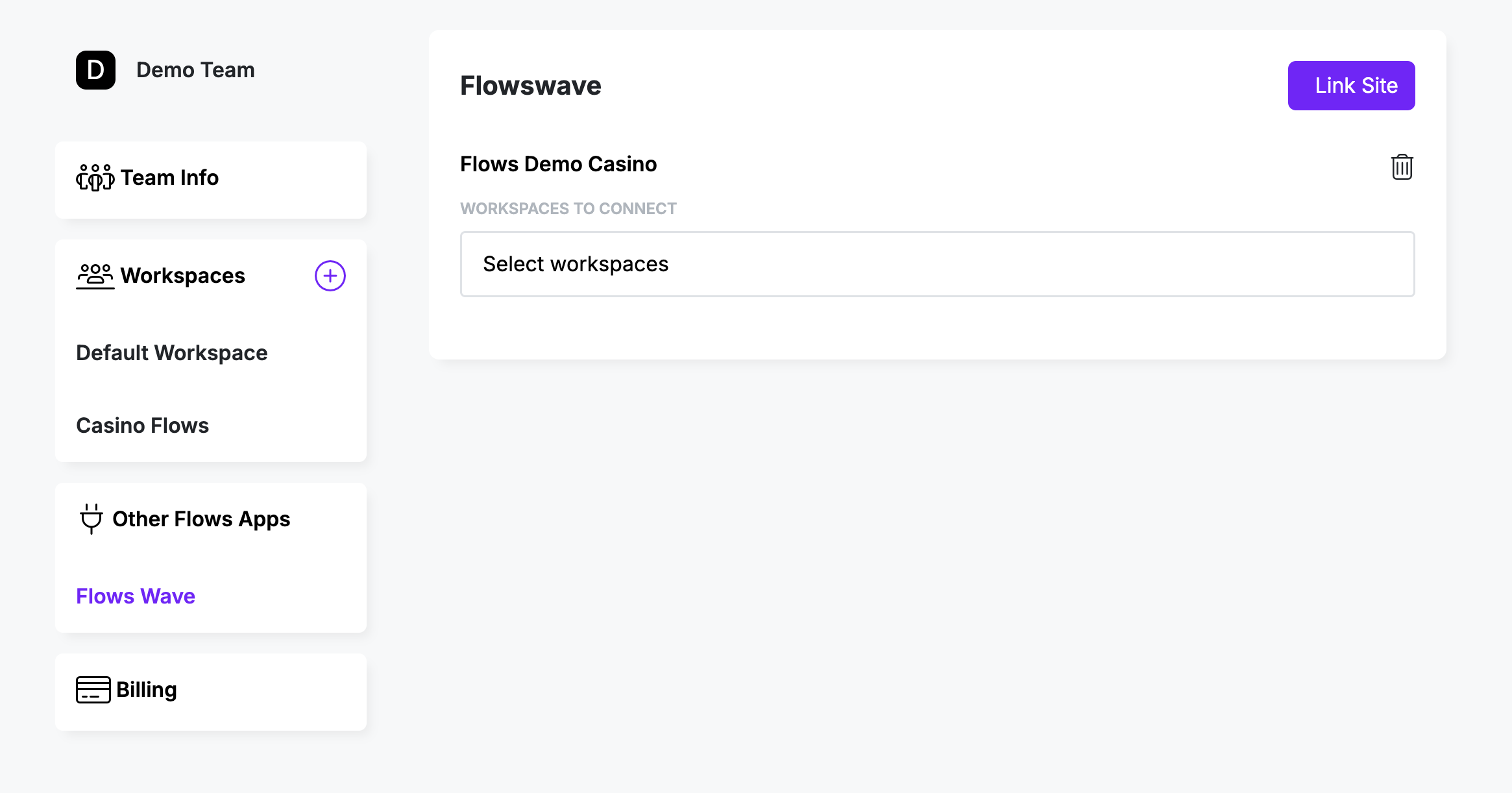
Next, click 'Link Site'. If you’re using the same user account for both Flows and FlowsWave, you'll be able to see your sites in the dropdown menu. Select the site to link to your team and click 'Link'. Once linked, you can assign FlowsWave to one or more of your workspaces, allowing control over which workspaces can use Flows.
Note: If you’re not using the same user account for Flows and FlowsWave, you can still link your site by entering the API key from FlowsWave into the link site box.