
Editing your pop-up
After choosing a template you will be taken to the main pop-up editor page where you can customise the appearance and content of your pop-up.
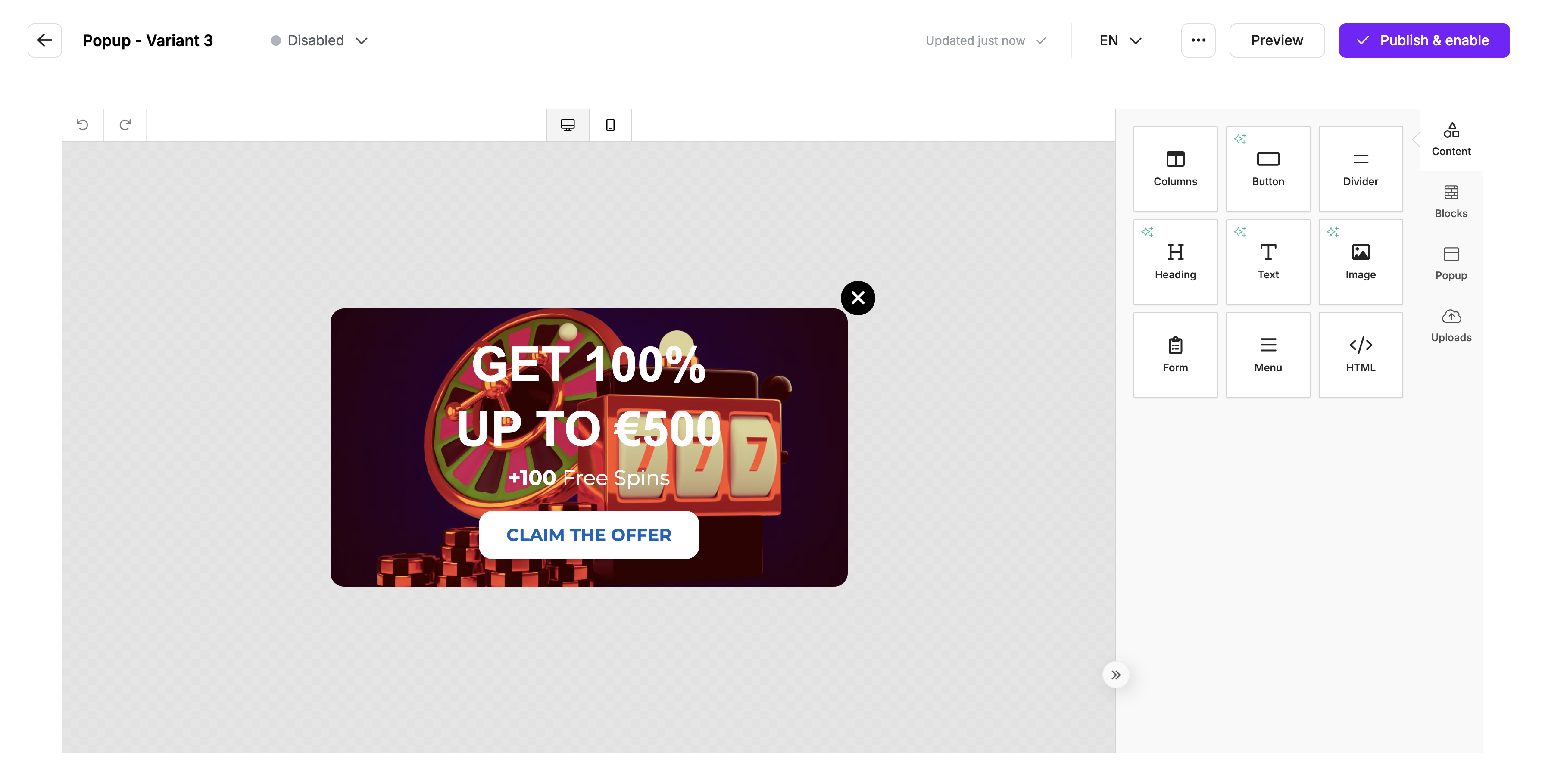
The editor is a drag and drop editor. On the right hand side is a set of block components that you can drag onto the canvas and combine to complete your finalised pop-up.
Language variations
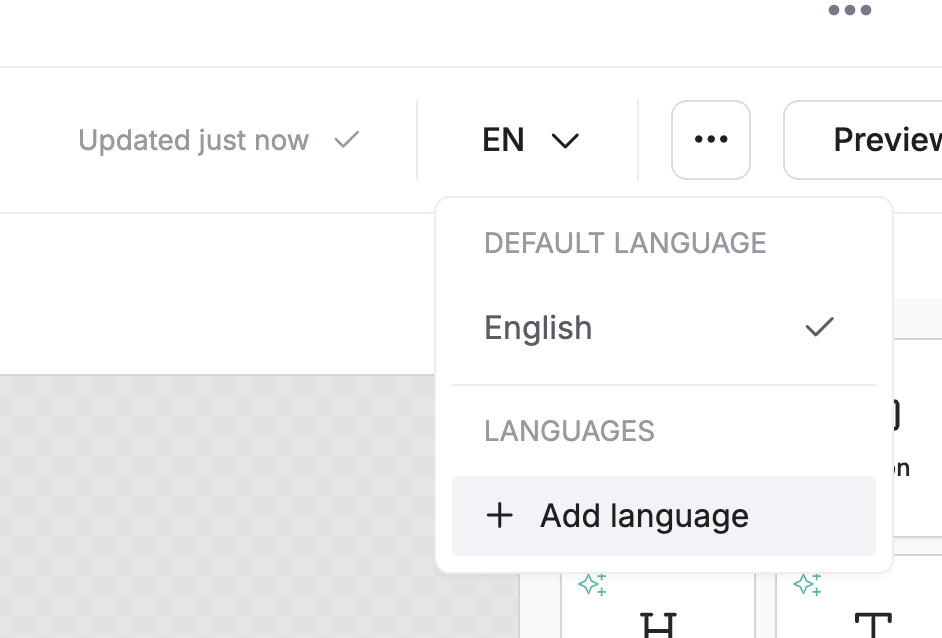
If you'd like to offer a pop-up in multiple languages, you can add additional languages through the language option. When setting a new language, a copy of the default language pop-up will be created, which can then be fully customised. Please note that each language version will be a completely separate pop-up.
A language variation will then be automatically delivered to users based on their browser’s preferred language settings.
Saving & publishing
Changes to your pop-up are automatically saved as a draft but do not go live immediately. Once you are satisfied with your pop-up, please click 'Publish & Enable' to make it live and ready for production deployment. From that point, you can trigger your pop-up as needed. If you wish to make further changes, you can continue editing, and your changes will again be saved in draft mode. Once ready, you’ll have the option to 'Publish' the updates to push them live.